> For the complete documentation index, see [llms.txt](https://docs.powerembedded.com.br/llms.txt). Markdown versions of documentation pages are available by appending `.md` to page URLs; this page is available as [Markdown](https://docs.powerembedded.com.br/en/administration-portal/groups/import-from-entra-id.md).
# Import from Entra ID
This option allows you to import groups directly from Azure Entra ID (formerly Azure AD) into Power Embedded.
The system will display a list of existing groups in your company's Entra ID.
You will select the groups you want to import, and those groups will be automatically added to Power Embedded.
There is also an option at the bottom of this page to include group users. When this option is selected, all users from the groups being imported will be imported and associated with their respective groups, as they are already associated in Entra ID.
{% hint style="info" %}
If you want to synchronize groups and their users automatically instead of a one-time import, read the article [Synchronize Groups with Entra ID](https://github.com/dirceuresende/docs-power-embedded-english/blob/main/administration-portal/groups/sincronizar-com-entra-id.md).
If you want to import individual users instead of importing a group, read the article [Import User from Entra ID](/en/administration-portal/users/import-from-entra-id.md).
{% endhint %}
### Requirements for Entra ID Integration
To integrate Power Embedded with Azure AD (Entra ID) and import users and groups, go to the [App registrations](https://portal.azure.com/#view/Microsoft_AAD_IAM/ActiveDirectoryMenuBlade/~/RegisteredApps) screen.
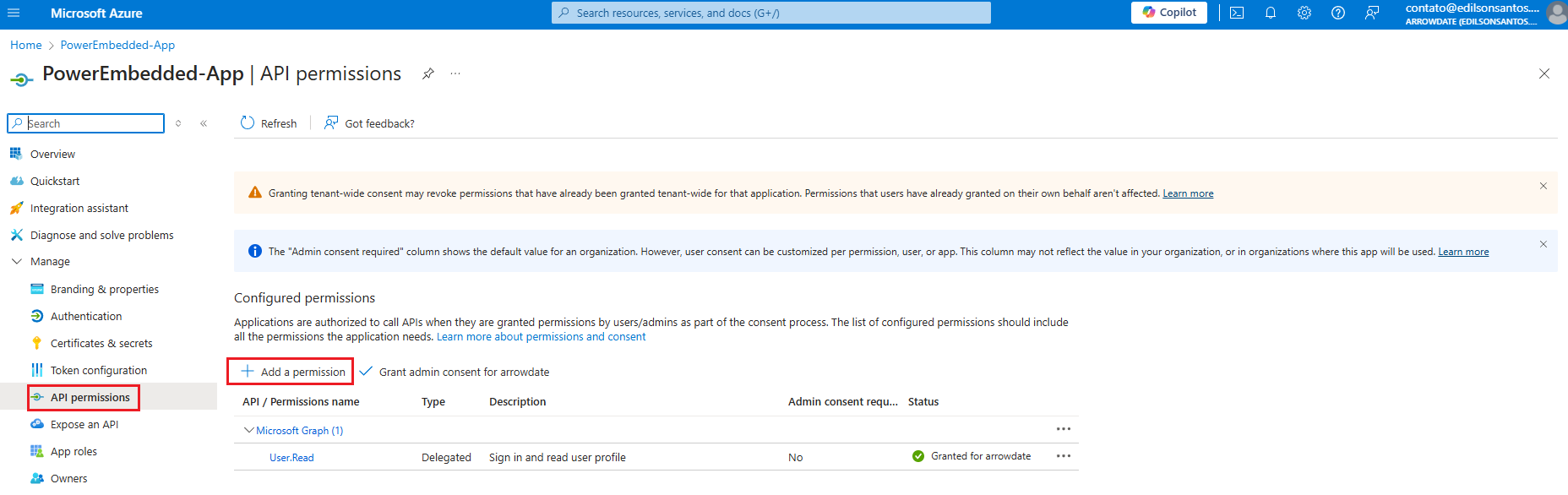
Search for the Power Embedded application (PowerEmbedded-App), click on "API permissions" and then "Add a Permission".
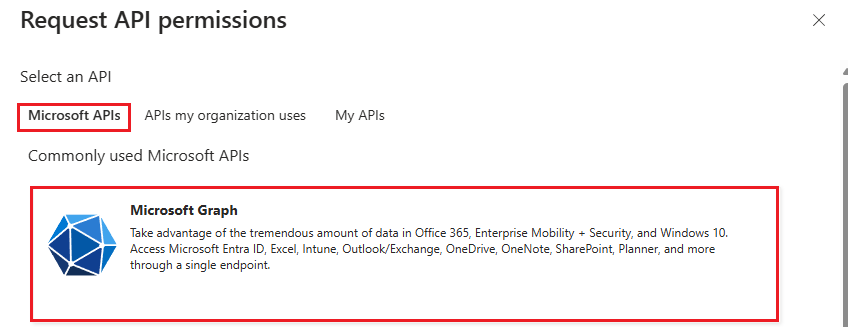
On the next screen, select the "Microsoft Graph" option.
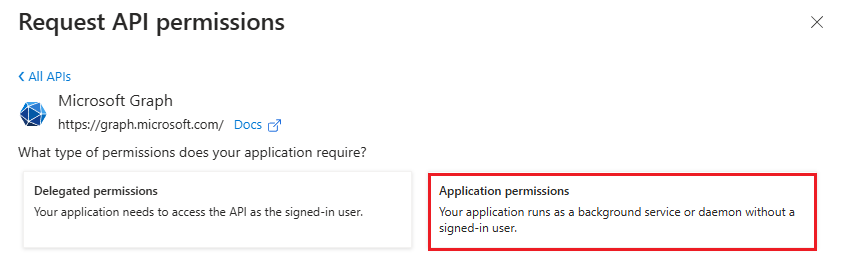
Then select the "Application permissions" option.
On the next tab, search for "Directory" and select the first option "Directory.Read.All", then click "Add permissions".
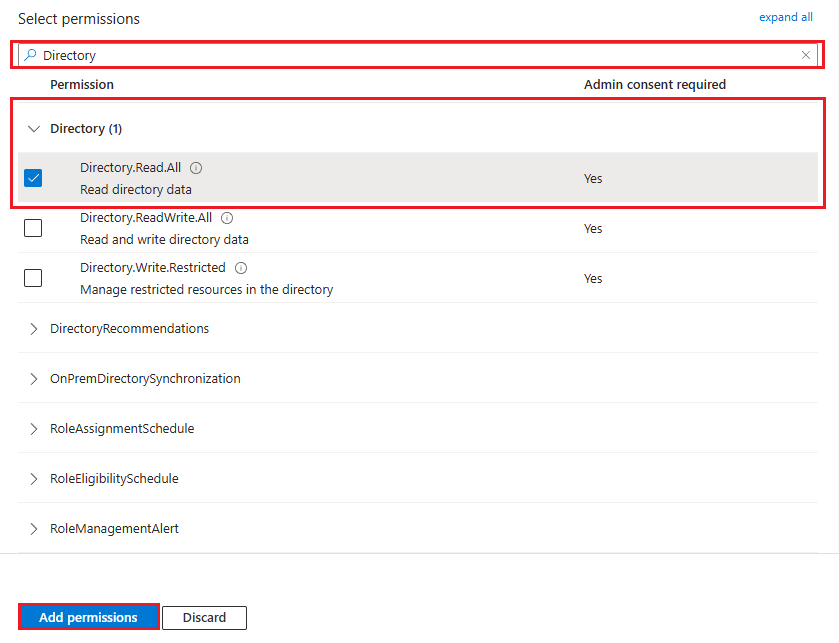
If you prefer a less privileged permission, you can grant only the "User.Read.All" and "Group.Read.All" permissions instead.
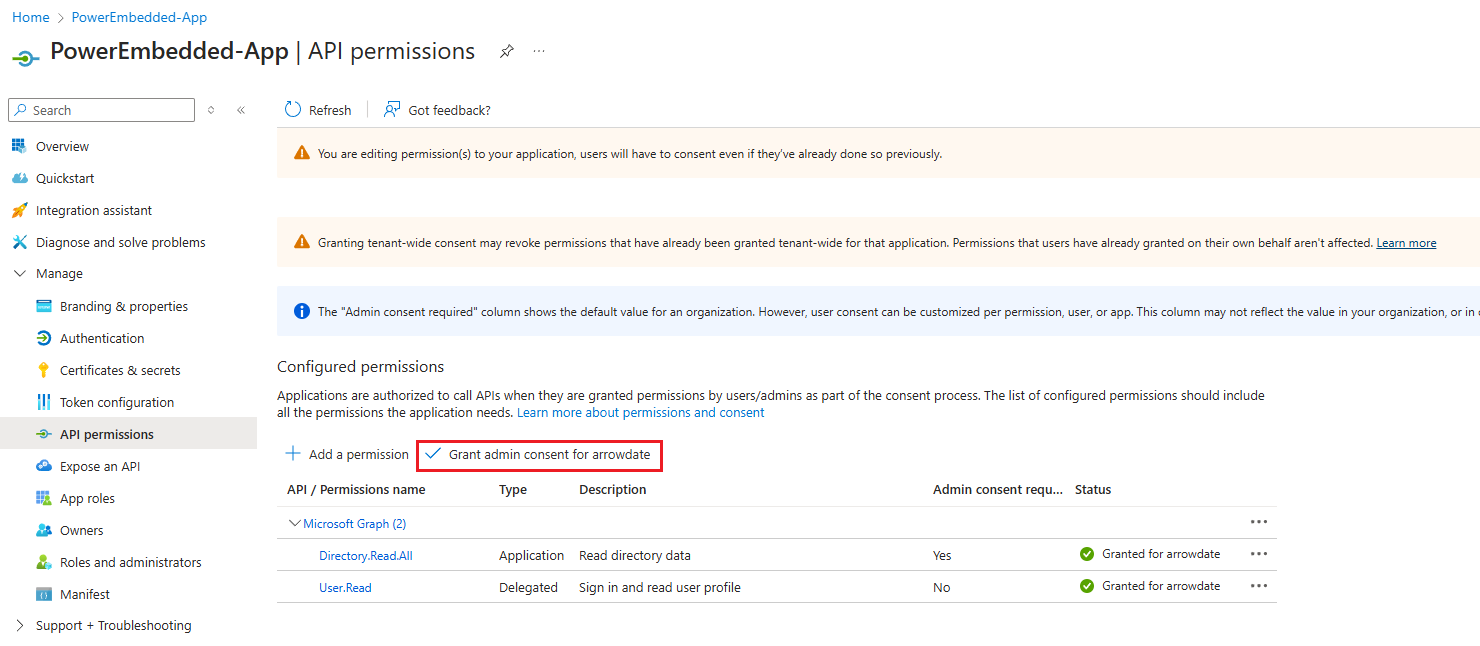
To finish, simply grant admin consent by clicking "Grant admin consent for".
Once you complete the remaining steps, you will be able to import users and groups from Azure AD (Entra ID) into Power Embedded.
.png?alt=media)
.png?alt=media)