> For the complete documentation index, see [llms.txt](https://docs.powerembedded.com.br/llms.txt). Markdown versions of documentation pages are available by appending `.md` to page URLs; this page is available as [Markdown](https://docs.powerembedded.com.br/en/reports-portal/most-common-issues/error-exporting-report-error-code-400.md).
# Error exporting report - Error Code 400
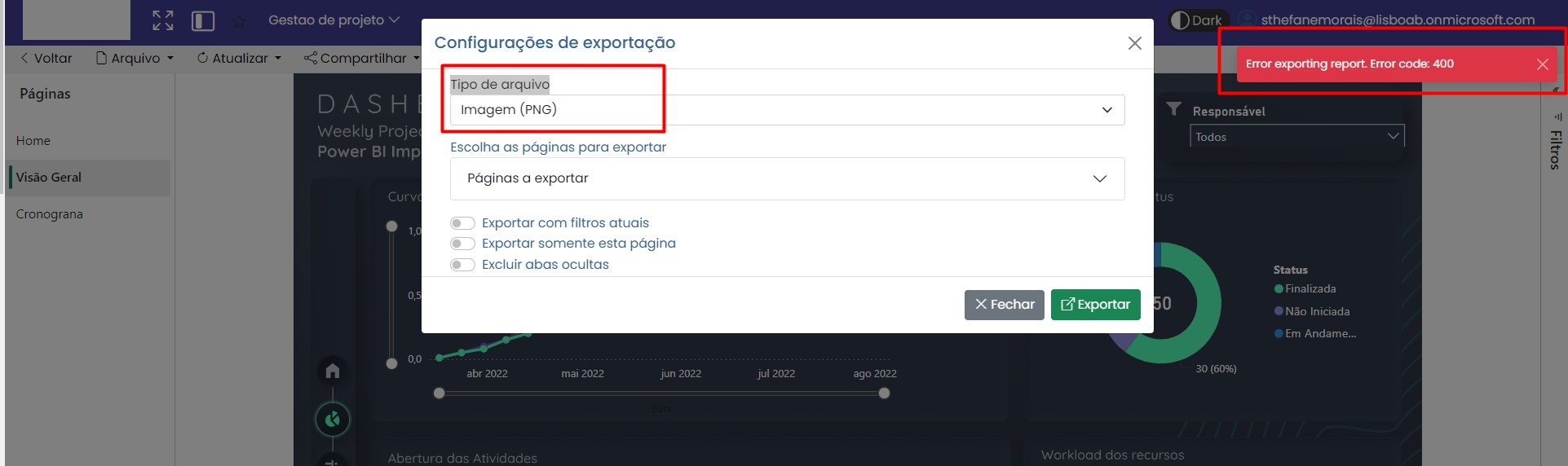
This error usually occurs due to a lack of permission to export data, and is most common when trying to export the report using the "Image (PNG)" format.
This article explains the step-by-step process of how to enable this permission in order to export reports in the desired format.
## 1. Accessing the Power BI Service Administration Portal
Using a user with Power BI Administrator permission (Fabric Administrator), access the [Power BI Administration Portal](https://app.powerbi.com/admin-portal/tenantSettings).
## 2. How to Check if the Required Permissions Are Enabled
On the Administration Portal page, in the **Tenant settings** menu, search for the word **"Export"** in the search bar located in the upper right of the screen.
Find the **"Export and sharing settings"** section and check whether Power BI is allowing the following exports:
* Export to Excel (Used by the "Export data" menu in the visual)
* Export to .csv (Used by the "Export data" menu in the visual)
* Export reports as PowerPoint presentations or PDF documents (Export button)
* Export reports as image files (Export button)
## 3. How to Enable the Required Permissions
If any of these permissions are disabled, some data export features will not be available in Power Embedded or will display an error message when you try to use them.
The example below demonstrates how to **enable** the **"Export reports as image files"** permission, which is disabled by default.
After the change above, you will be able to export your reports as a PNG image file.
.png?alt=media)
.png?alt=media)