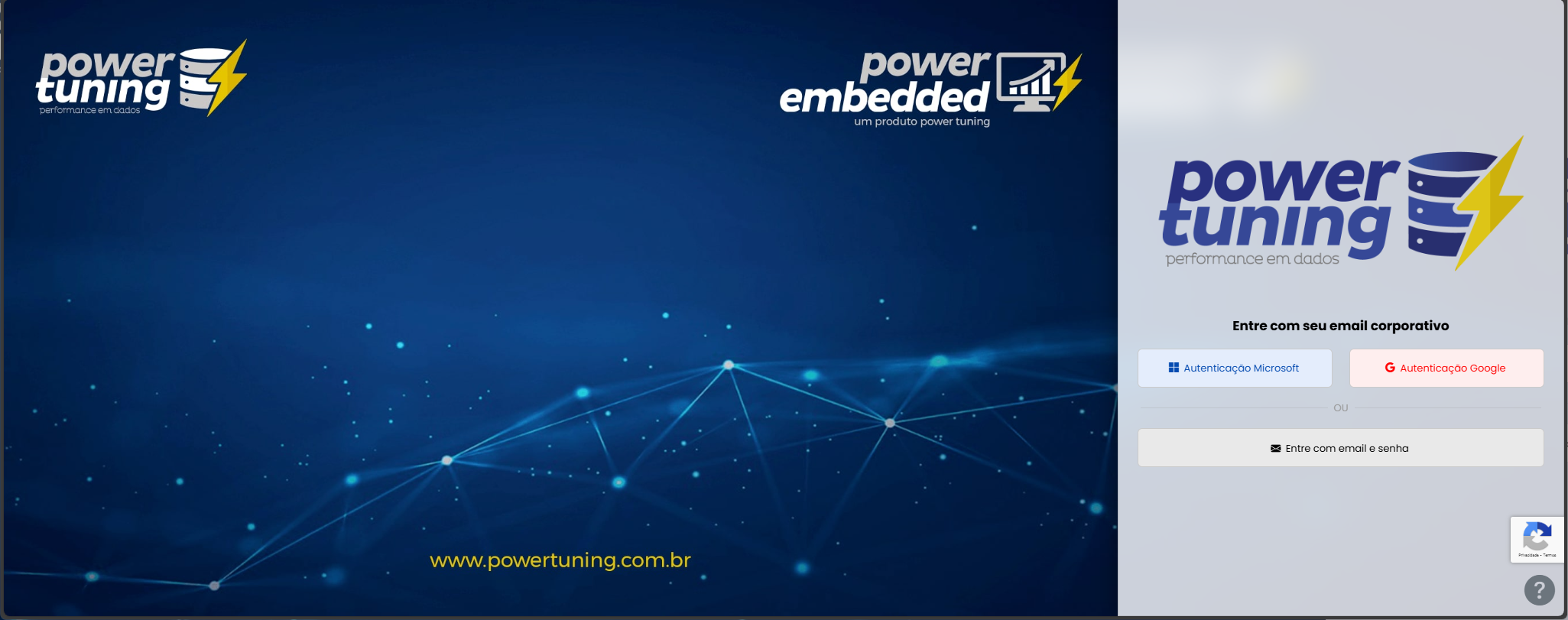
# Authentication methods

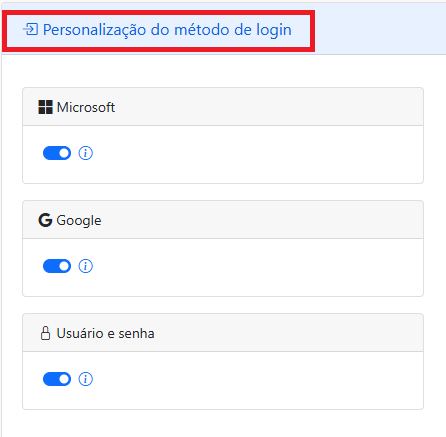
### Customization of the login method

Power Embedded supports three authentication methods, and you can choose which ones will be enabled and displayed on the login screen.

If you block an authentication method, no user will be able to log in using that method, and it will not appear on the login screen.

If this authentication method is enabled, it will be shown on the login screen, but you can block it at the user level so that a specific user cannot use this authentication method.

<div align="left"><figure><img src="/files/KhYByKAqbrxD7SiyJgnU" alt=""><figcaption></figcaption></figure></div>

### Change layout opacity

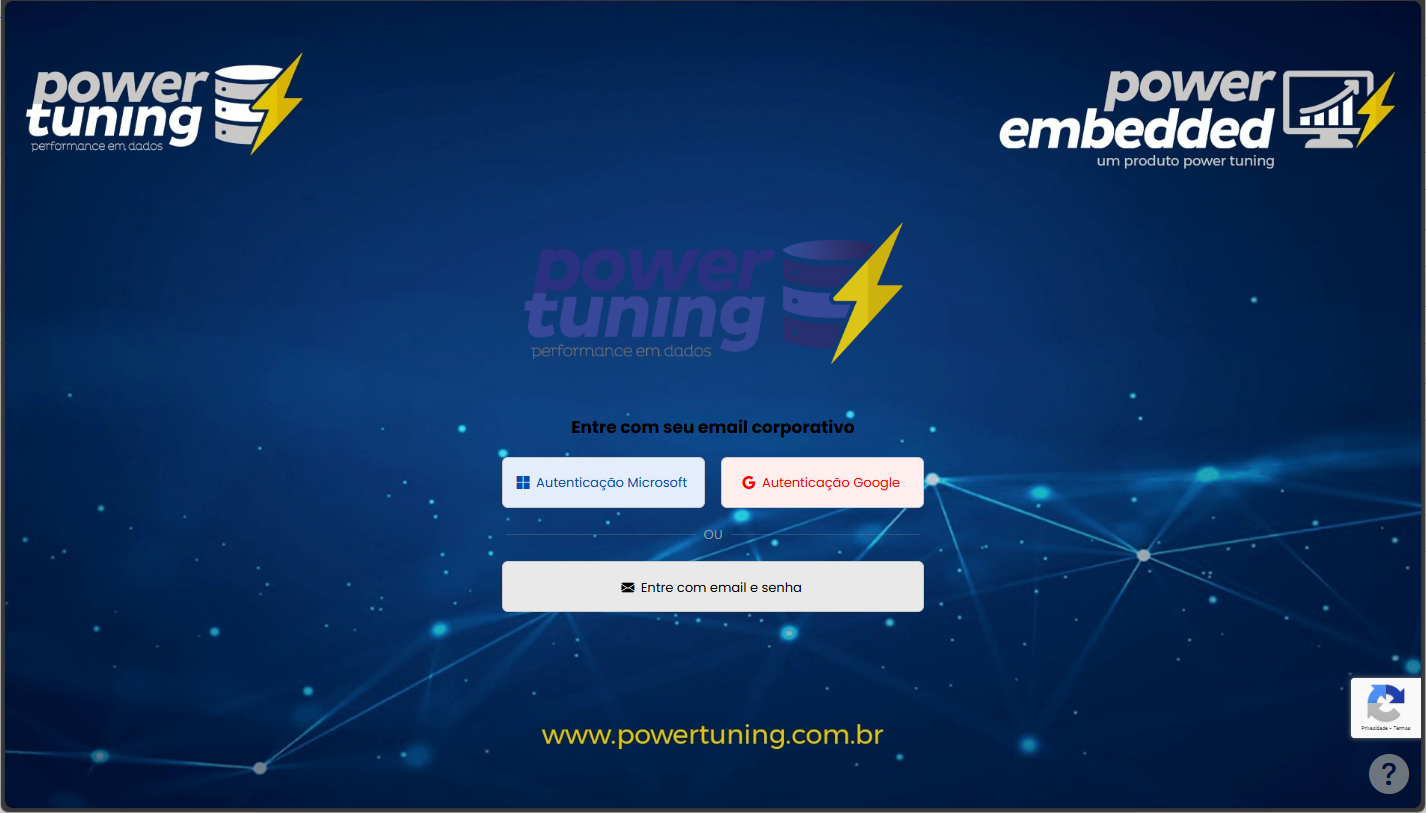
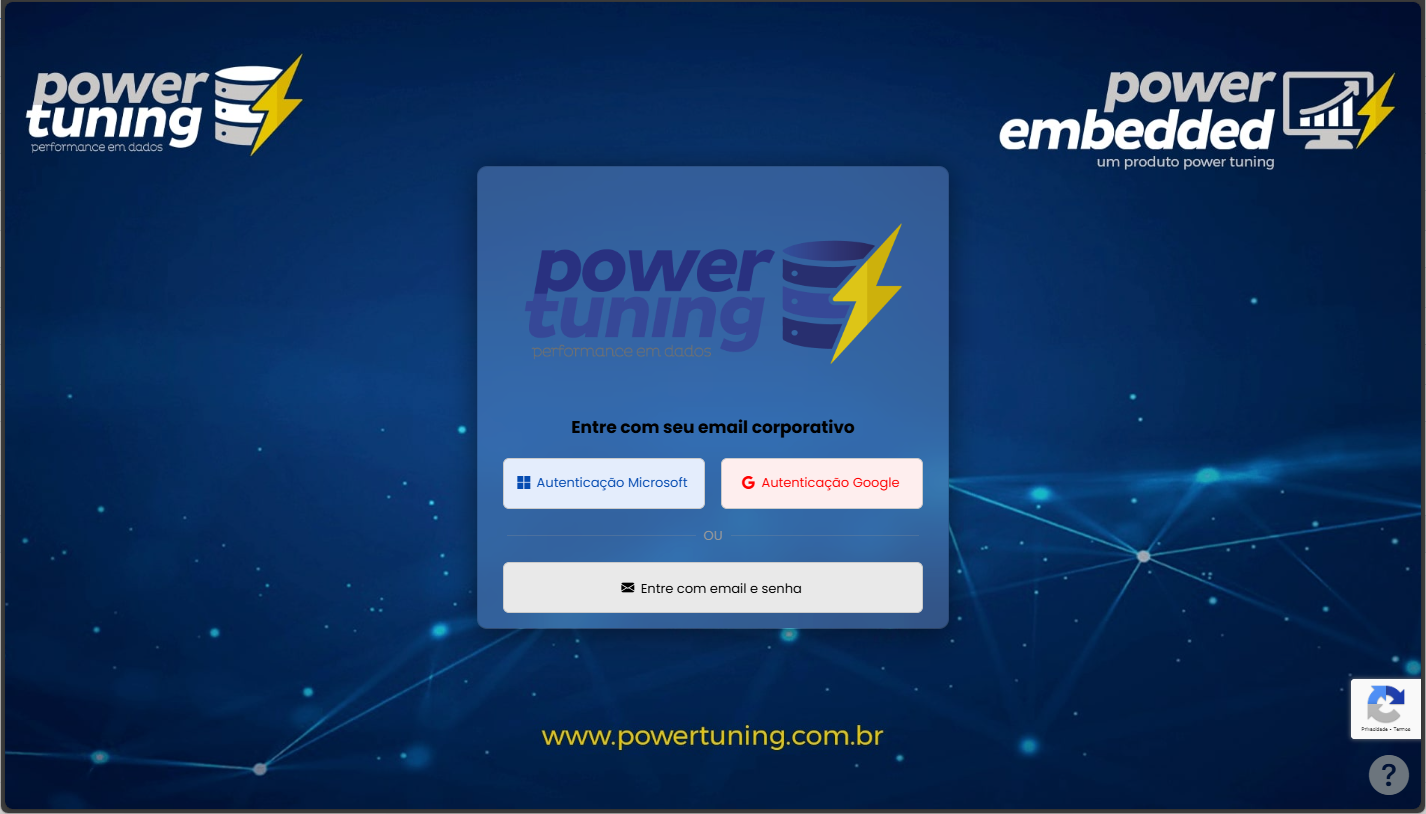
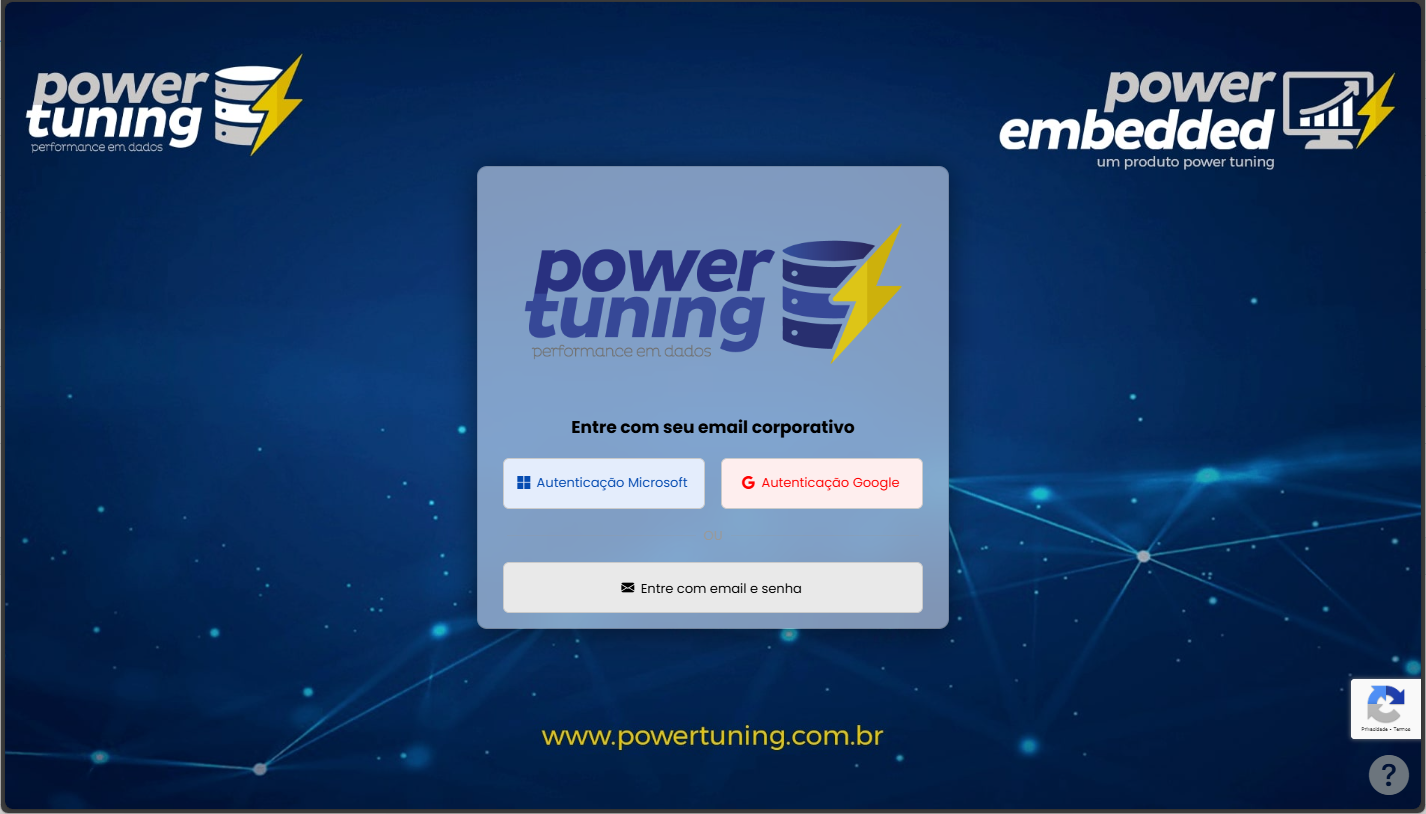
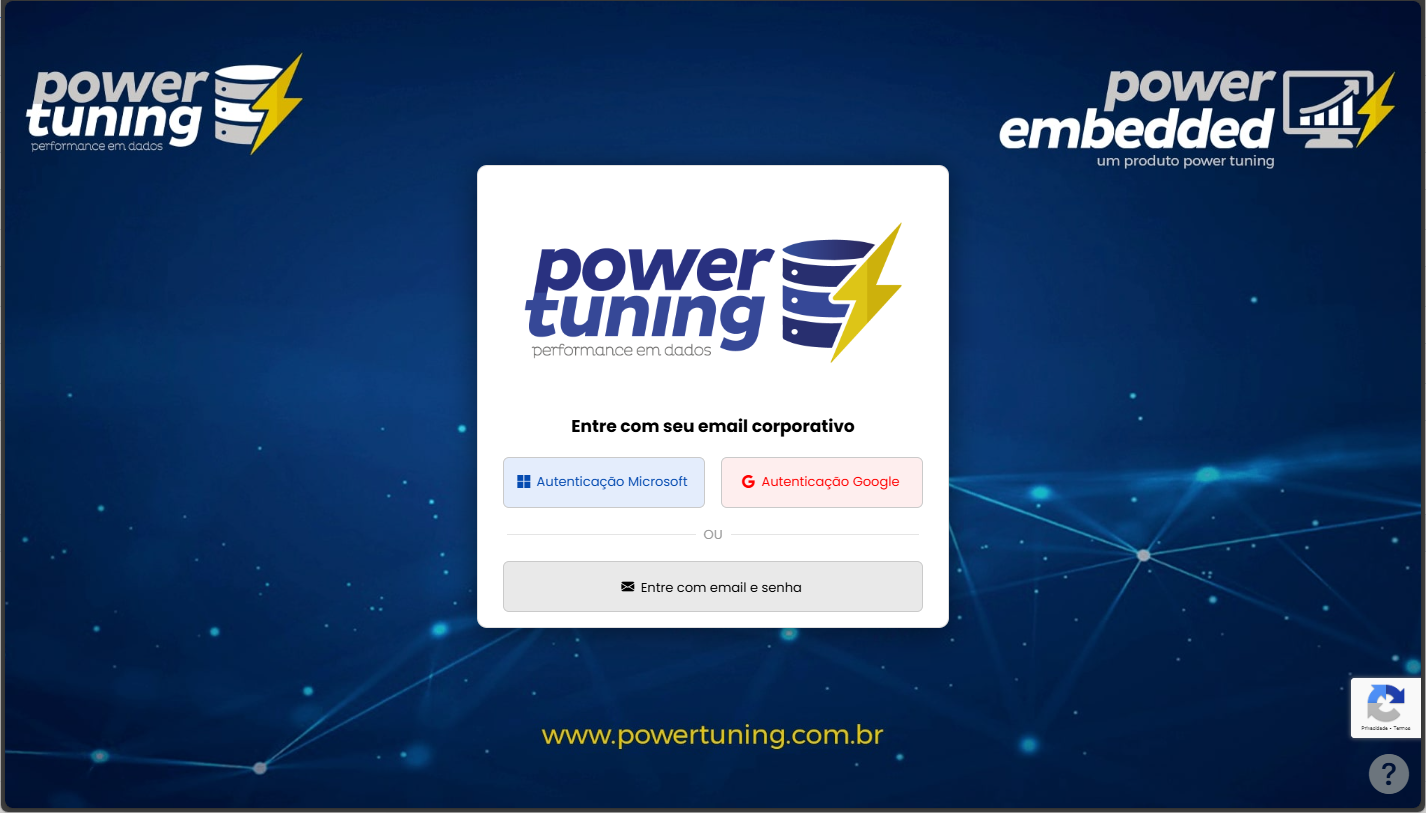
Setting that allows you to define how transparent the login screen will be.

<div align="left"><figure><img src="/files/KGdgJZMAyzRrTUNBg0Vf" alt=""><figcaption></figcaption></figure></div>

<div><figure><img src="/files/nhyu4MdL3vBNuHTTHMSM" alt=""><figcaption><p>0% Opacity</p></figcaption></figure> <figure><img src="/files/DDa4wjgvKQeOqCL8yasM" alt=""><figcaption><p>20% Opacity</p></figcaption></figure> <figure><img src="/files/WgBvrSPmzbx5y6lcuSCi" alt=""><figcaption><p>50% Opacity</p></figcaption></figure> <figure><img src="/files/xpBlbUaC4GJOEBzfHe3o" alt=""><figcaption><p>100% Opacity</p></figcaption></figure></div>

{% hint style="info" %}
If you set the opacity level to 100%, transparency will be disabled. Setting it to 0%, the login screen will be fully transparent
{% endhint %}

### Always expand username/password options

Option that allows the username/password fields to be automatically expanded on the login screen.

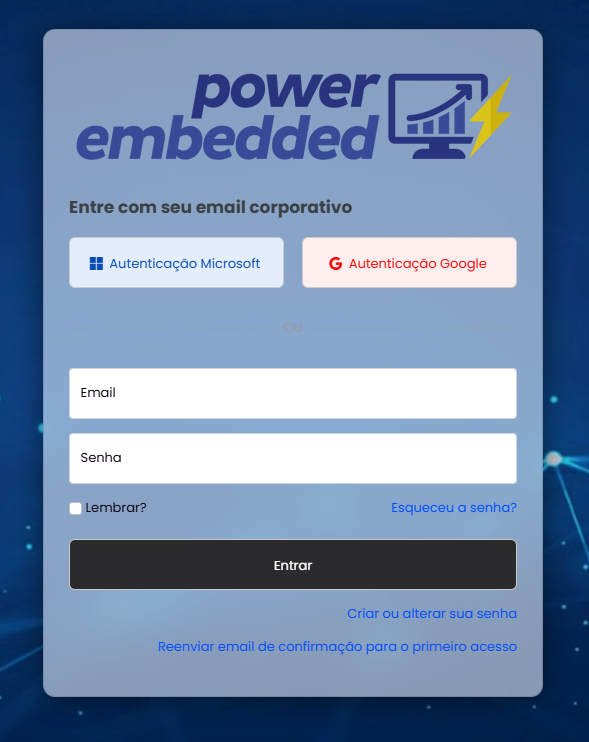
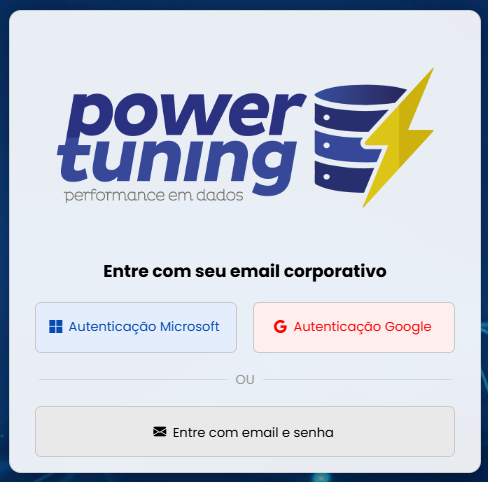
<div align="left"><figure><img src="/files/Eq7LNDE1eC9WIVMKO7CV" alt=""><figcaption><p>Opção marcada</p></figcaption></figure> <figure><img src="/files/35yP2ZMSaexWxDCt4Aro" alt=""><figcaption><p>Opção desmarcada</p></figcaption></figure></div>

### Login page layout

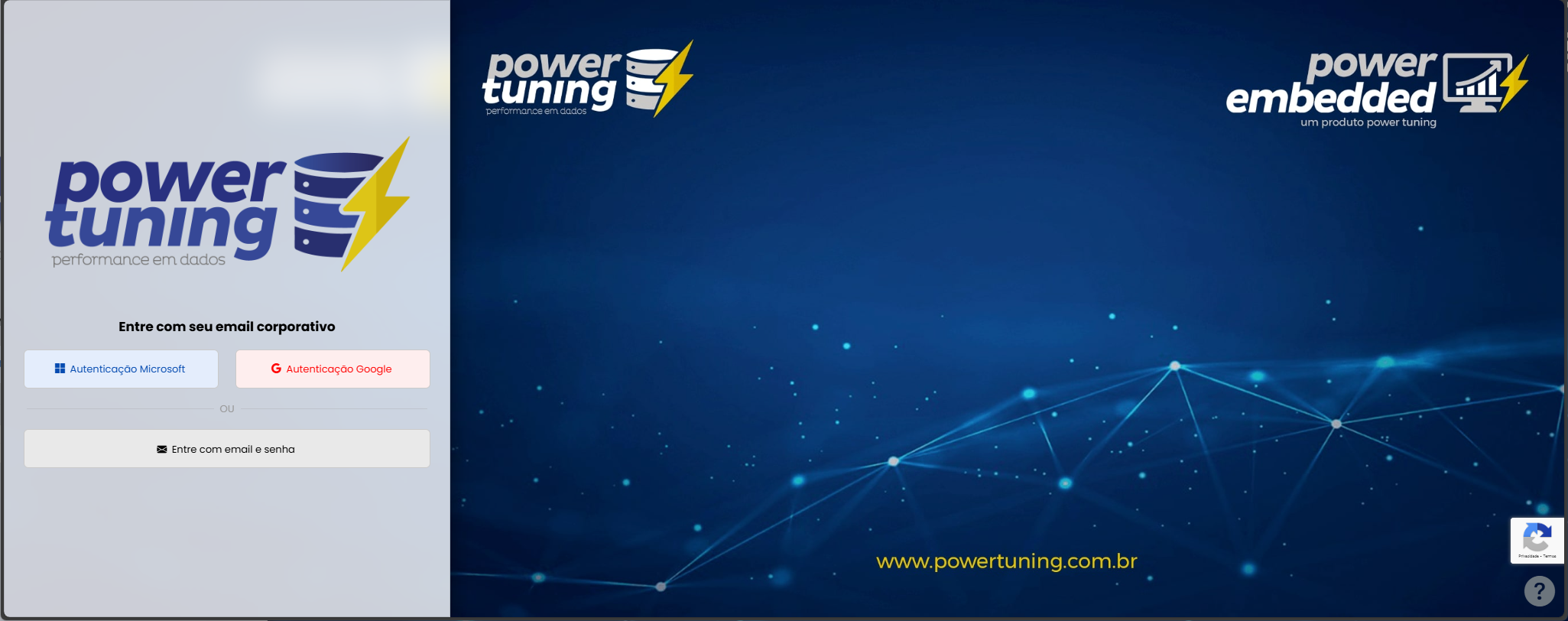
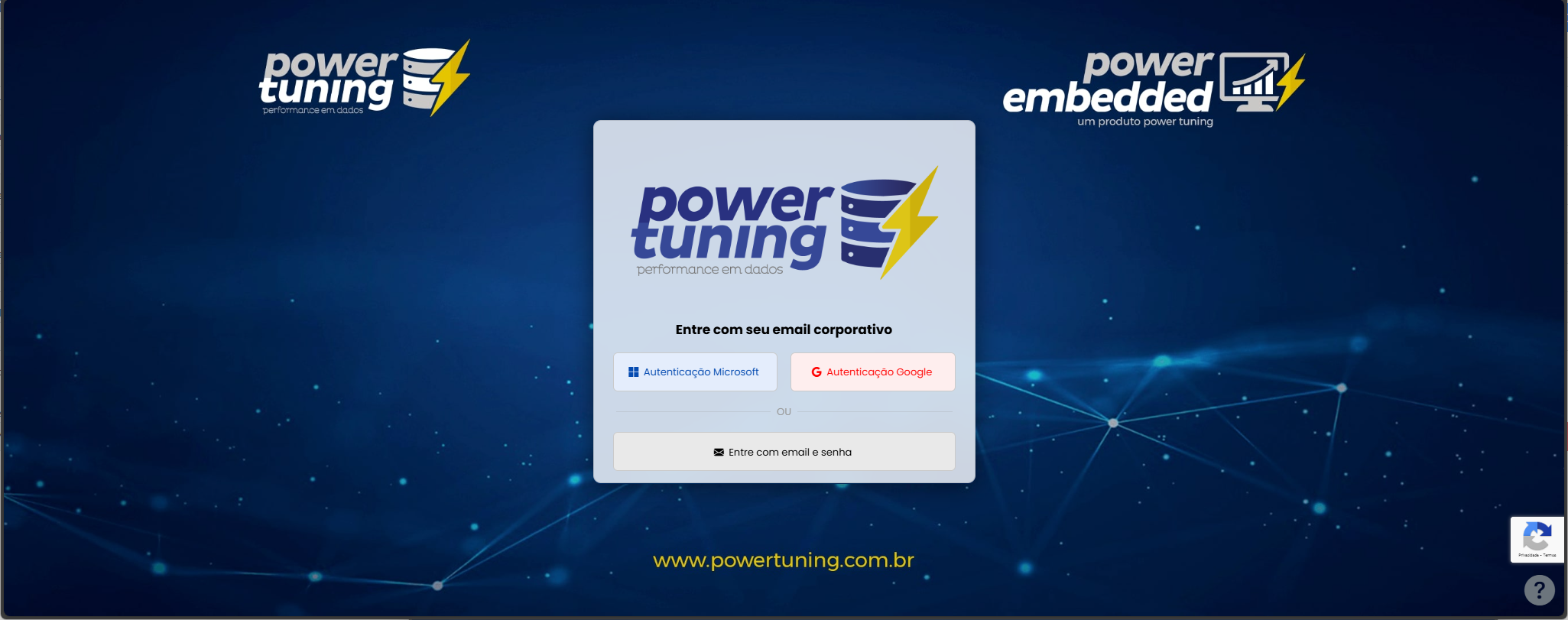
Option that allows you to configure the login page layout according to your preference.
<div><figure><img src="/files/kaw1cmcL3RSLcwuKZpGE" alt=""><figcaption><p>Left</p></figcaption></figure> <figure><img src="/files/qfSSFCKVWwky2GKtVqsJ" alt=""><figcaption><p>Center</p></figcaption></figure> <figure><img src="/files/pcKpDd9YiPuLRg8GXIY3" alt=""><figcaption><p>Right</p></figcaption></figure></div>


---

# Agent Instructions: Querying This Documentation

If you need additional information that is not directly available in this page, you can query the documentation dynamically by asking a question.

Perform an HTTP GET request on the current page URL with the `ask` query parameter:

```
GET https://docs.powerembedded.com.br/en/administration-portal/settings/login-screen/authentication-methods.md?ask=<question>
```

The question should be specific, self-contained, and written in natural language.
The response will contain a direct answer to the question and relevant excerpts and sources from the documentation.

Use this mechanism when the answer is not explicitly present in the current page, you need clarification or additional context, or you want to retrieve related documentation sections.