> For the complete documentation index, see [llms.txt](https://docs.powerembedded.com.br/llms.txt). Markdown versions of documentation pages are available by appending `.md` to page URLs; this page is available as [Markdown](https://docs.powerembedded.com.br/en/administration-portal/settings/organization.md).
# Organization
**Configuring the Organization**
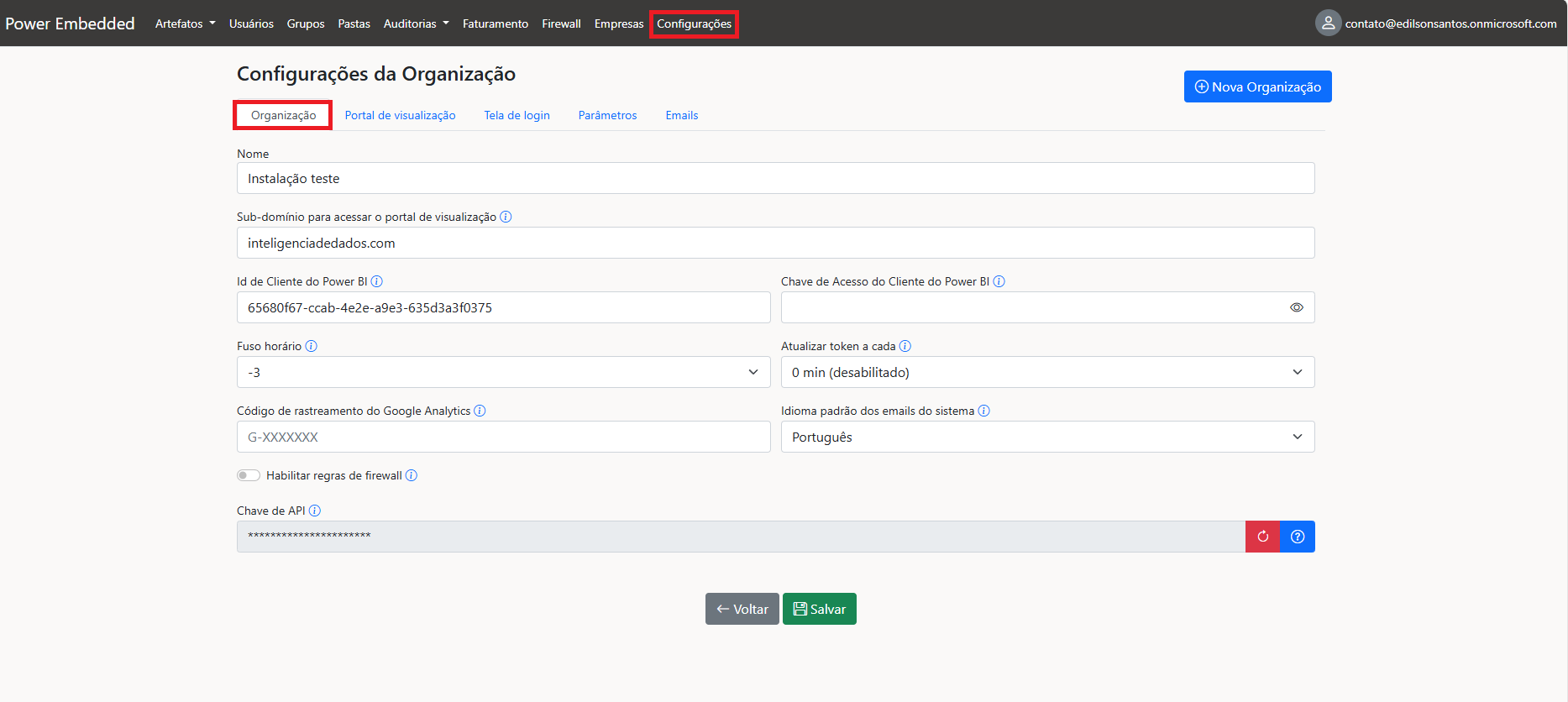
To assist in setting up this environment, here is a step-by-step guide on how each field works:
**Name**: Defining a name for the organization is very important, as it will be the visible name for users on the viewing portal and in the emails they receive.
**Subdomain**: Here you can configure a customized subdomain for your company. [Learn more](/en/administration-portal/dns-configuration/cloudflare.md).
**Power BI Client ID**: Application identification (Client ID) used for PowerEmbedded connection. [Learn more](/en/technical-documentation/installation/fabric-trial.md).
**Power BI Client Access Key**: Secret (password) generated for the PowerEmbedded connection application. If you do not enter a new value, the previously registered value will be maintained. [Learn more](https://github.com/dirceuresende/docs-power-embedded-english/blob/main/administration-portal/settings/organization/alterar-senha-do-aplicativo.md).
**Time Zone**: Define the company's local time zone (Brazil = -3).
**Update Token Every**: When a report is accessed, the generated token is valid for 1 hour. If the user leaves the screen open, the token may expire. Configuring this option allows the token to be updated periodically, preventing disconnections due to expiration.
An error like this may appear to the user when accessing a report if the token has expired.
**Google Analytics Tracking Code**: Code used to collect and analyze information about the use of the report portal by Google Analytics.**Default Language of System Emails**: Language of emails sent by the system. In some cases, the system may ignore this field and use the language of the person responsible for the action that generated the email.
**Enable Firewall Rules**: Activate this option to allow access to the viewing portal only from IPs in the ranges released by the administrator. Once activated and the first IP added, access will be restricted to allowed IPs. Access Control with [Firewall](/en/administration-portal/firewall.md).
**API Key**: Security key to authenticate API integration calls (Api.powerembedded.com.br).[ APIs to integrate Power Embedded with your application](/en/technical-documentation/api/api-automations.md).
This feature allows creating multiple organizations in a single tenant. This means that if you want to have distinct environments, separate users, and reports, you can create a new organization.
### **New Organization**
This button allows creating multiple organizations in a single tenant/installation.
\
This means that if you want to have distinct environments, separate users, and reports, you can create a new organization.
Se precisar de ajustes ou de mais traduções, é só me avisar!
{% content-ref url="" %}
{% endcontent-ref %}